Amazing Graphics Papers: Dual Photography

This is a summary of the technique in the paper Dual Photography, which was presented at SIGGRAPH 2005. What the authors managed to do is very clever, and you can even understand the technique without knowing much high-brow math. Color me impressed.

Imagine you are photographing a scene which contains objects lit by a lamp. Suppose the light source is replaced with a structured light source, basically a projector. We could turn all the pixels of the projector on and get what is essentially a lamp. But in general we could light just some of the projector pixels, and illuminate the scene with whatever weirdly shaped light we want.

Fact: light transport is linear. So the relationship between the input vector p (which pixels on the projector are lit) and the output vector c (the brightness on each camera pixel) can be described by a matrix multiplication: c = T p. The ijth element of the matrix T is the brightness of the ith camera pixel when the jth projector pixel (and nothing else) is lit with intensity 1. (If the camera and the light source both have resolution of, say, 103×103, then p and c both have length 106, and T is a 106×106 matrix.)

We can actually construct the matrix T by lighting the first pixel, taking a picture, lighting the second pixel, taking a picture, etc. (each picture yields one column of the matrix T). And once we've done this, we can plug in any vector p we want to see what our scene would look like with arbitrary illumination from the projector. So, once we have this matrix T which completely characterizes the response of this scene to lights, we can change the lighting of the scene in post-processing.

That's already kind of neat, but the most impressive trick here is based on the fact that light transport follows the principle of reciprocity. If light of magnitude 1 enters a scene from a projector pixel a and lights up camera pixel b with intensity α, then a ray of light could just as well have entered at b and exited at a, and that light will also be passed with the same coefficient α. This is easily seen if the scene contains mirrors, but it's actually true in general, even if light is partially absorbed, reflected in funny ways on the scene, etc.

Now, what happens if we swap the locations of the projector and the camera in our scene? What's the matrix T' associated with this new scene? Because of reciprocity, it's merely the transpose of the matrix T: all the coefficients are the same, but they move around because we've swapped the 'input' and the 'output' of our system.

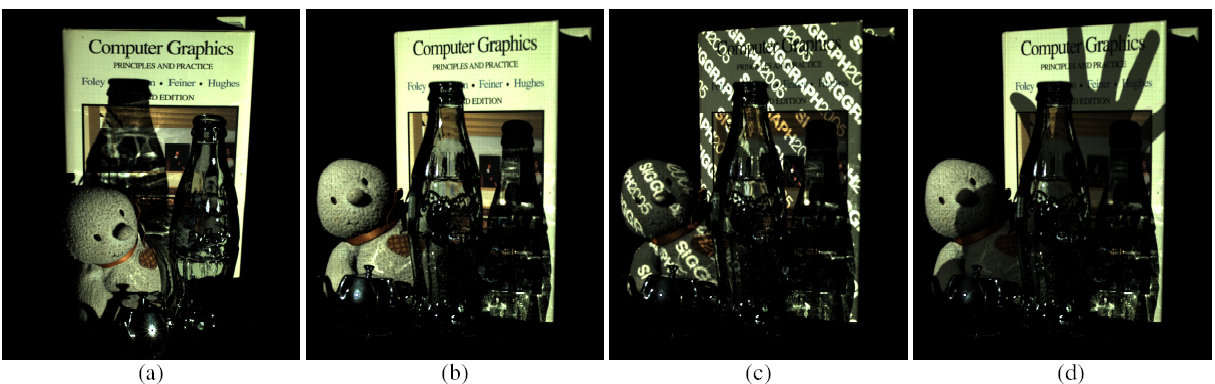
You'll notice something funny about this, which is that using T', we can reconstruct the scene as if it were viewed by a camera where the projector was, and lit by a projector where the camera was. The authors show that this actually works, and describe some tricks they played to get it working well. See the pictures below: the second, third, and fourth pictures can all be synthesized from the matrix T, despite the fact that the scene was never photographed from that angle.

The authors then use this technique to (I am not making this up) read the back of a playing card. Watch the video (linked from the web page), then read the paper.

The approach works no matter what the resolutions of the camera and projector are. You can even take a picture using a projector and a photodiode (i.e. a single element light sensor), because the effective resolution of the virtual camera is the resolution of the projector.

A web hosting recommendation: NFSN

This year I started hosting my personal web site with nearlyfreespeech.net. I have nothing but the best to say about them.

NFSN is a virtual hosting service, which means that small sites don't pay for capacity they aren't using, and large sites are automatically load-balanced. NFSN-hosted sites regularly get links from Slashdot, Digg, etc. and they stay up.

Pricing: NFSN is pay-as-you-go: bandwidth starts at $1/GB and goes down based on your usage, and storage is $0.01/MB/month. I'm paying less than $7/month for my site, and most of that only because I'm running a web app that's a derivative of Wikipedia. No stupid pricing tiers here.

Environment setup: you can set up your shell for public-key access over SSH. Their environment comes with Emacs 22 and git installed, which means that, for once, my web host shell is actually useful and not just a pale shadow of a real working environment. (Yes, vim 7.1, bzr, hg, SVN, and CVS are installed too.)

Abuse policy: here is a clip from their abuse FAQ:

A NearlyFreeSpeech.NET member site is defaming me or otherwise injuring me civilly.

Please forward a copy of your legal finding from a court of competent jurisdiction to our contact address. If you have not yet obtained such a finding, a preliminary injunction or court order is also sufficient.

The rest of it reads similarly. It is nice that there are web hosts out there that respect their customers, even when those customers don't have absurdly priced SLAs.

Making backups (instructions for GNU/Linux)

The cardinal rule of backing up is: assume that any one of your hard drives could go up in smoke at any moment. Zap. Could be right now. Magnetic disks will fail, and it's not a matter of if, but of when. (Backups will also save you from some user error, although that is not their primary purpose.)

Once you are thoroughly convinced of that, you will be nearly paranoid enough to implement a good backup strategy. This may seem awfully depressing, but the great news is that storage is cheap these days. As of this writing, you can get a 500GB hard disk for under $100. Having a full backup of your files when your primary disk breaks into tiny pieces is worth a lot more than $100. I've lost three disks in the last three years. In no case did I lose any data.

I am not willing to mess with the hardware or software needed to configure a RAID, so my backup solution (based on jwz's PSA) involves a second hard disk and rsync on a cron job.

Whenever I get a new hard disk for a computer, I generally make it the primary disk (containing /, /home, and swap) and graduate the previous disk to the role of a backup and swap disk. The backup partition is formatted with ext3, just like my root and home partitions. Suppose that the backup partition on the second disk is mounted at /media/sdb1 and I want to backup my homedir to /media/sdb1/phil. (My system is pretty much a stock Ubuntu install, so there is little value in backing up stuff outside of /home.)

The following script, archive-homedir, rsyncs my homedir to the backup disk:

rsync -vaxE --delete --ignore-errors /home/phil/ /media/sdb1/phil/
touch /media/sdb1/phil/last-backup

The options basically mean: print the files being copied; preserve timestamps and permissions; don't descend into other filesystems mounted under your homedir; delete files in the backup when they get deleted on the main partition; and ignore errors. The script also touches a file so you can see at a glance when the last backup was made.

This crontab file backup.crontab causes a backup to happen every day at 6AM:

0 6 * * * /path/to/archive-homedir

Install and activate it with crontab /path/to/backup.crontab. If your cron is configured to email you with the job output, you will get the list of files that was backed up every morning. Watch out for messages telling you that your disks could not be read or written. These generally mean that you need a fsck or a new disk.

I use the same kind of setup to back up my laptop disk over the network. On my laptop, archive-homedir looks like this:

rsync -vaxE --delete --ignore-errors --delete-excluded \
--filter="merge /path/to/archive-exclude-patterns" \
/home/phil/ desktop:/media/sdb1/laptop/

where archive-exclude-patterns is a file with a list of filter rules that instruct rsync to include or exclude certain files. I use this file to tell rsync not to back up some files that are not worth transferring over the network, like my web browser cache. My archive-exclude-patterns looks like this:

- /.local/share/tracker/
- /.local/share/Trash/
- /.mozilla/firefox/*/Cache/
- /.thumbnails/

On my laptop, I don't run archive-homedir on a cron job, but I do run it whenever I'm on the same LAN as my desktop.

Emacs in Ubuntu Hardy now has anti-aliased fonts

Update, 7 August 2009: the most recent major release of Emacs (v. 23.1) now has the anti-aliased font support. See the Ubuntu elisp PPA, which contains packages for any recent Ubuntu release, or see installation instructions for various other platforms.

The latest emacs-snapshot-gtk packages in Ubuntu Hardy (1:20080228-1) have the Unicode/font changes merged, and now support anti-aliased fonts for the first time.

While I didn't really mind the old bitmap fonts, I have to say that anti-aliasing is gorgeous.

To activate the new fonts, I added the following line to my ~/.Xdefaults:

Emacs.font: Monospace-8

Then, I ensured that the settings in .Xdefaults are being loaded by adding the following to my ~/.xsession:

if [ -f $HOME/.Xdefaults ]; then
  xrdb -merge $HOME/.Xdefaults
fi

Content-addressable storage

In Git, every file is stored under a hash of its content. One consequence is that a particular file is only ever stored once in the repository, regardless of how many versions it appears in and under how many names. Each of those instances is a pointer to the same blob of data.

I'm using Git to manage a large collection of binary files (scanned images). I'm using version control so I can add new data, replace bad scans, and rename or reorder files reversibly. I've noticed two great things about this:

First, since I frequently add new files and rename files, but only occasionally delete or modify them, the repository (containing the entire revision history) is only slightly larger than the actual current state of the repository. This is true for many kinds of binary data (e.g. photos, music), so it makes using Git very attractive: why would you keep one backup copy when, for about the same amount of space, you could have a complete version history?

Second, pushing changes is very fast. Even after I rename hundreds of files, Git doesn't need to push huge amounts of binary data (just a few kilobytes) because every file is already in the repository, except possibly under a different name. This is far more economical than rsync, which would attempt to re-transfer every file that had been changed.

What Unicode Means (or, why the Content-Type header is important)

Back in the day, when all computer engineers spoke English and lived in the USA, there was a wonderful standard called ASCII for representing text. It mapped each element of the English alphabet, digits, and punctuation (as well as some special symbols) to numbers between 0 and 127. For example, the letter "a" was 97. Since a byte can hold any of 256 values, this meant that text could be encoded using just one byte per character. In fact, since a byte can represent any of 256 values, there were even plenty of unused codes left over.

Computer manufacturers all had their own ideas about what meaning to assign to the unused codes. They would represent accented Latin characters if you bought a computer in Western Europe, Hebrew characters if you bought a computer in Israel, etc. For people writing in East Asian languages, there were even more complicated schemes which required using two bytes for each character, because those languages have more than 128 additional characters that need to be represented (thousands, in fact).

Eventually ANSI standardized these extensions to ASCII by creating the concept of "code pages": each code page was an encoding that mapped some set of characters to the codes between 128 and 255, although the codes from 0 to 127 were all the same (that is, the same as ASCII). If you are using Windows in any Western European language, you may have noticed your computer mentioning that it is using the Windows-1252 encoding, which is one such code page (it includes, mostly, accented Latin characters like è).

Just because the code pages were standardized did not mean that they were not a mess. Sharing files with others was problematic, because your messages would appear garbled if the recipient used a different encoding while opening the file. (This is what you are observing whenever you get emails which contain question marks or rectangles or characters like çëêèîôö until you tell your email program or web browser to use a different encoding.) The problem is that the meaning of a sequence of bytes is ambiguous unless you know what mapping between characters and bytes the sender used. Even worse, you could only use one code page at a time: for example, a document could not contain both Hebrew and Cyrillic letters; a database could not contain text from languages requiring two different code pages unless it stored the associated code page alongside each chunk of text.

Unicode was designed to solve this last problem by creating a single character set that could represent characters from any language. In the Unicode standard, each character (of which about 100,000 have been standardized now) is mapped to a "code point", which is just a number. For example, code point 65 is the letter "A" and code point 33865 is the Chinese character 葉 (usually, code points are represented in hex so people would typically refer to this character as U+8449).

Notice that we've only been talking about characters and their corresponding integers (code points): we've said nothing about how these integers are to be represented. As a first attempt you might choose to represent the code points using fixed-length sequences of bytes: representing code points 0, 1, 2, etc., using 0x00000000, 0x00000001, 0x00000002, etc., respectively (With three bytes you can actually represent up to 16,777,216 characters, which is plenty for now, but four is a nice round number.) This encoding (way of mapping code points to byte sequences) is called UTF-32. It's very simple, but people who were using mostly characters found in ASCII had to pay a 4x space overhead to encode all their data in UTF-32. So it was really hard to sell them on UTF-32, which, consequently, is rarely used.

There is another encoding called UTF-8 which maps code points to sequences of varying lengths: some code points can be written using just one byte, and some code points need up to four bytes to write. UTF-8 has the interesting property that Unicode code points 0-127, which are the same as ASCII characters, are mapped to the one-byte sequences 0x00-0x7f (0-127). What this means is that every ASCII text means exactly the same thing when interpreted as UTF-8! It is because of this backwards-compatibility that UTF-8 has become the standard for representing text on the web, in Java, and as a part of many other standards. There is another encoding called UTF-16 which uses two or four bytes to represent each character (Windows uses it a lot internally). The UTF-* encodings can represent any character in Unicode, which is a superset of pretty much every other character set out there. So text in any encoding scheme can be reversibly converted to UTF-8 or UTF-16.

To understand Unicode, it's important to make the distinction between a sequence of Unicode code points (abstractly, characters) and an encoding of those characters, which is just a sequence of bytes. With that in mind we can start to understand some of the mysteries of text.

Unicode in Python

[In Python 3.x, sequences of Unicode code points are represented by str, the default string type. So you don't need to use the u prefix on string literals as shown below. String data that has been encoded, and thus no longer carries the implication that it is a sequence of Unicode code points, is represented using bytes (as is data that is just random binary data). More information about str and bytes.]

In Python 2.x, "sequences of Unicode code points" are represented by unicode objects; you can make Unicode literals like so:

z = u"\u0041\u0042C" # Equivalent to u"ABC"

To do any I/O on a Unicode string (printing it, writing it to a file, or sending it out over the network), you have to choose an encoding for it. The process of encoding always transforms your unicode string into a str string, which is often assumed to mean "ASCII text" but really just means "sequence of bytes in some encoding".

Obviously, the encoding you choose has to be the same as the encoding that will be used to open it (that is, the encoding used by your terminal, the program that will open the file, or the computer on the other end of the network connection). When it's necessary to encode down to a byte sequence, Python will silently use your default encoding, which is usually ASCII. If you are using ASCII characters, you probably won't notice anything funny going on. But if you use any international (non-ASCII) characters, Python will raise a UnicodeEncodeError, which basically means "I tried to do the encoding, but one of the characters doesn't have an equivalent in ASCII!". There are two ways around this, which involve explicitly specifying the encoding using the encode method:

  1. If you intend for your recipient to be able to read the non-ASCII characters, you need to choose an encoding that can actually represent them. What you probably want here is to encode to UTF-8:

    >>> u"\u0041\u0042\u8449".encode('utf-8')
    'AB\xe8\x91\x89'

    Observe that the last character was encoded using three bytes.

  2. If your recipient really is expecting ASCII text, then they just can't view international characters. You can tell Python to attempt to do the encoding but replace the characters with question marks when the target character set can't represent the character:

    >>> u"\u0041\u0042\u8449".encode('ascii', 'replace')
    'AB?'

As you can see, converting to ASCII (and other 1-byte encodings) is lossy, but converting to and from UTF-8, UTF-32, etc. are reversible.

Unicode in HTML documents

Data served over HTTP also has to have an associated encoding to be interpreted unambiguously. Usually the Content-Type header is used to identify the encoding for the document. The W3C's HTML validator will yell at you if you do not specify the encoding:

<!DOCTYPE HTML PUBLIC "-//W3C//DTD HTML 4.01//EN">
<html>
<head>
  <meta http-equiv="Content-Type" content="text/html;charset=utf-8">

But, you may have noticed a weird circularity here... how can a client read any data on the page, much less the encoding, if it doesn't already know what the encoding is in which it should interpret the contents of the page? Well, you're supposed to put the Content-Type header as the first thing after <head>, and you can usually get that far without using any non-ASCII characters, and ASCII, UTF-8, and any ANSI code page will all agree on the meaning of the ASCII characters (code points 0-127). So it works.

In XML, you are supposed to identify the charset on the first line, in the XML declaration:

<?xml version="1.0" encoding="UTF-8"?>

Unicode in text files

Even text files are not immune. In fact, when you have multiple encodings, there is no longer any such thing as "plain text" (by which we mean, text data that can be read unambiguously).

In Emacs, to set the coding system for a file, set the coding variable by adding this magic incantation anywhere in the first line (or second line, if the first line is a shebang line):

-*- coding: utf-8 -*-

Further reading: Joel on Software: The Absolute Minimum Every Software Developer Absolutely, Positively, Must Know About Unicode and Character Sets, Unicode FAQ, Python: Overview of Encodings and Unicode, Emacs manual: (info "(emacs)Specifying File Variables")
Using git-svn to interact with SVN repositories

Imagine you are a Git user and you have to work with an SVN repository. Tragically, you are now incapable of working without cheap and easy branching, disconnected operation, and all the other things that make Git great.

git-svn is a gateway that lets you interact with SVN repositories while using Git for all your local commits. It has the advantage of needing no extra configuration on the SVN server end.

To create a repository:

$ mkdir myproject; cd project
$ git-svn clone svn+ssh://me@remotehost/path/to/svn/repo

This may take a while, but you now have a bona fide Git archive with the full project history (which is not something that an SVN checkout contains).

Note: this is for a repository with no trunk and branches directories.

Your typical workflow will now looks like this.

Get remote changes:

$ git-svn rebase

Do all your Git business locally: edit, diff, commit, branch, and merge.

To push your changes back to the SVN repo:

$ git-svn dcommit

Individual commits in Git are pushed in order as separate commits to the SVN repo.

Further reading: git-svn documentation