git grab bag

Time to flush my buffers again before the new year. Happy new year, everyone!

In no particular order here are some useful git things I've run across recently.

git stash --keep-index

git's index (or staging area) is useful, but it comes with a liability: you run into the danger of committing a state that doesn't work (compile, pass tests, etc.) because you never actually "saw", on your disk, the stuff that was going to be committed, in isolation.

That's what git stash --keep-index is for: it stashes the changes you haven't staged for commit, so you are left with only what will get committed. Do your builds/testing/verification, then git stash pop to continue working.

git clone --reference

If you're trying to clone a large remote repo, it's a waste of time to re-download objects that are already present in another repository on your local disk or local network. You can use the --reference option to obtain objects from this local repository when possible (any objects not found are pulled as usual from the real source):

git clone --reference LOCAL.git REMOTE.git my_new_clone

(This is sort of like cloning LOCAL.git, changing its remote to point to REMOTE.git, and fetching again, but much easier, and doesn't pollute your clone with branches and commits that are only present in LOCAL.git but not in REMOTE.git. From a content perspective it is exactly a clone of REMOTE.git.)

Note: if LOCAL.git is on the same filesystem, git sets up the alternates file so that object IDs can be resolved just using the object files in LOCAL.git. This may be undesirable because you won't actually have the objects in your new repo(!) and references in your new repo alone will not(!) be sufficient to keep the objects from being GC'd if LOCAL.git changes. To break this dependency, forcing the required objects to actually be copied into your new clone, do the following:

git repack -a; rm .git/objects/info/alternates

gfind

To make git print out all the files it is tracking:

git ls-tree -r --name-only HEAD

This is a useful base for searching your codebase, since it automatically lets you search all of your actual code and avoid looking at compiled code, generated code, downloaded libraries and documentation, etc.

I have aliased this to gfind and do things like this to search within a repo:

gfind | xargs grep FOO

git-filter-branch

git-filter-branch is your general purpose tool for rewriting repositories wholesale, for example, to extract a single subdirectory retaining all its history, or to excise a subdirectory, file, secret key, password, etc. that you've put in the repository.

Matthew McCullough has put together a good starting point with examples of how to use this tool. (Unfortunately, some of the links are broken; I will post alternate links once I find track down copies.)

git diff --color-words

Word based diffs in git! Great for LaTeX, Markdown, etc. More info here.

Zeya 0.6

I'm pleased to announce the (long overdue…) release of Zeya 0.6.

This release contains only bug fixes and minor changes that help Zeya to "just work" under a wider variety of circumstances.

Major changes since Zeya 0.5:

  • The 'dir' backend works with Python 2.5 again. (Thanks to Greg Grossmeier)
  • Broken symlinks are detected and ignored. (Thanks to Etienne Millon)
  • Unreadable playlist files are detected and ignored.
  • The 'dir' backend sorts files case-insensitively. (Thanks to Greg Grossmeier)
  • Zeya no longer leaks file handles under certain circumstances. (Thanks to Pior Bastida)
  • The frontend uses relative paths to resources, so Zeya can be run behind a reverse proxy out of the box, e.g. at http://yourhostname/path/to/zeya (Thanks to Jérôme Charaoui)

See http://web.psung.name/zeya/ to learn more about Zeya, installation, getting started, reporting bugs, and development.

Why Zeya?

I noticed that Zeya is now more than two years old. (Yow! Version 0.1 was released in August 2009! Thanks to you all for all the patches, by the way. Zeya has become much more popular than I would ever have guessed at the time.)

This got me thinking about what has, and hasn't, gotten better in that time with respect to music software, and why I thought Zeya was so useful in the first place.

Conceptually, you can think of any computer that is involved in playing your music as providing one or more of the following functions:

  1. Storage: storing your music in nonvolatile storage and retrieving it
  2. Control: letting you push buttons and see what is playing or available to play
  3. Playback: driving a set of speakers

Traditionally all three functions have been performed by the same computer. But there's no reason they can't all run on different computers, not when you have a moderate- or high-speed network connecting them all. You might ask why you would actually want to separate these functions. The answer is that each function is best suited to be performed by a computer with a specific set of attributes, and the requirements for all of the functions are at odds with each other, and so require some compromise if they are to be colocated.

  1. Storage wants to be done on a computer that has an enormous disk and is possibly continuously backed up.
  2. Control wants to be done on a computer that is easy to reach (physically), possibly even one that fits in your pocket or can otherwise be carried around.
  3. Playback wants to be done on a computer that permanently sits somewhere you want to hang out and is attached to a set of sweet speakers.

The original impetus for writing Zeya was that it became clear to me that storage constraints were becoming increasingly annoying. People switched their portable devices from spinning rust (classic iPod and laptop HDDs) to flash memory (smartphones, smartphone-like devices like the iPod touch, and laptop SSDs), and all of a sudden, with the accompanying drop in capacity (most smartphones, for example, top out at just 16GB or 32GB), many people could no longer carry their entire music collection with them.

At a higher level, Zeya completes the trio of tools that lets you decouple the components in varying ways:

  1. Zeya and similar tools decouple storage from control and playback. Conceptually Amazon Cloud Player and Google Music are doing the same thing, too, though there the storage happens in the cloud.
  2. X11 decouples control from storage and playback.
  3. PulseAudio decouples playback from storage and control.

(If you use any two of those, you can completely decouple all three functions, modulo the fact that X11 and PulseAudio don't work very well over high-latency links.)

There has long been a patchwork of pieces that provide flexibility along one or more of the above dimensions (iTunes, Sonos, etc.) and have various tradeoffs; though, only in the past year have we seen the launches of high-profile products like Amazon Cloud Player and Google Music, which are more directly analogous to Zeya. All the attention in this area means that people are finally starting to understand the possibilities of the technology. Namely, that when you have network access everywhere, physical distance (and the need for the colocation of certain things) becomes much less important.

Network audio with PulseAudio made (somewhat) easy

I figured it was long past time to buckle down and learn how to make PulseAudio do my bidding and redirect audio across a network link. And I was surprised to learn that it's actually not hard to set up. In fact you don't need to touch any config files in /etc. Which you would never know, from reading most of the documentation that is out there.

While network audio is still kind of flaky at times, you only "pay" for it if you use it (people complain about PulseAudio a lot, but in my experience it works very reliably when used locally), and it can come in very handy.

Background

Throughout, I'll refer to the two computer roles as audio source and audio sink (where audio data is generated/decoded and where the speakers are attached, respectively). Note that these may differ from the PulseAudio concepts of the same names.

Ubuntu ships with PulseAudio, and many apps (among the common graphical apps and music players) understand how to talk to PulseAudio now (possibly through a compatibility layer). Except maybe Flash, but everyone who uses Flash is already used to it not being a proper citizen. The default setup is to have a per-user instance of PulseAudio running alongside the X session. This means that someone has to be logged in to X on both ends. If your audio sink is headless then you might have a single system-wide PulseAudio instance instead. Configuring that is not covered here.

PulseAudio runs as a service on port 4713. We need to first make that service discoverable on the machine with the audio sink, and then provide a way for the machine with the audio source to authenticate to the sink (so that you're not just letting anyone on your network play their crappy music).

Initial steps

On the machine with the audio sink:

  • Install and run paprefs &
  • Go to the Network server tab.
  • Check Enable network access to local sound devices and Allow other machines on LAN to discover local sound devices. Autodiscovery uses Avahi, which you'll need to re-enable, if you ever disabled it.

(You might have to restart PulseAudio or X for the settings to take effect.)

I will describe two ways you can get the machine with the audio source to supply credentials to the sink so it can play music. The first one is likely to be more generally useful.

Using .pulse-cookie

The ~/.pulse-cookie file is a shared secret that can be used for authentication. Just copy that file from either machine (sink or source) to the other so that they are the same on both ends.

At the audio source, install padevchooser and run it (padevchooser &). A menu will appear in your notification area. Under Default server you should see an entry for the sink, assuming it is on the same local network (it should be named username@hostname). Select it.

Now run the application of your choice and play some audio!

Piggybacking on X11 forwarding

This method has the advantage of not requiring working autodiscovery. So you can use it on a LAN without Avahi running, or over a non-local network. All you need is to be able to SSH from the sink to the source. We will forward the audio from the source to the sink on a TCP port.

For this method, we'll transfer the credentials that the source will need by writing them to the X11 root window. PulseAudio supplies a program that does exactly this. On the machine with the audio sink, run:

sink$ start-pulseaudio-x11

(You can double-check that this is working by running xprop -root | grep PULSE and checking that there is an entry for PULSE_COOKIE, among others.)

Now initiate an SSH connection to the source, tunneling a port of your choice on that end over to your local PulseAudio server:

sink$ ssh -X -R 9998:localhost:4713 source

Run the application of your choice and play some audio! As you are doing so, set the PULSE_SERVER variable, which now enables your remote application to talk to your local audio hardware via the tunneled port.

source$ PULSE_SERVER=localhost:9998 rhythmbox &

Conclusion and caveats

Et voila, now you've decoupled your music player from your speakers. So you can play music from your laptop using the speakers at your desktop. Or you can play music from your desktop using the speakers in your living room. Some things to watch out for.

  • You may need to kill and restart pulseaudio (or X) to get it to pick up some of those configuration changes.
  • PulseAudio will not move a stream while it is running, so if you use the menu to change the destination, the change will not take effect until the next song begins, unless you pause and restart playback in your audio application.
  • PulseAudio is kind of finicky and some of it still feels like black magic at times. You may need to restart it if you suddenly get errors about things not working, especially if they were just working a minute ago.

Sources and further reading: pulseaudio-discuss, ArchLinux wiki, Ubuntu forums

QR codes in LaTeX

If you are adding QR codes to print media, in order to make them look really sharp, you want the QR codes to be generated in a vector format rather than a bitmap format. It turns out that the pst-barcode package allows you to easily add vectorized QR codes to your LaTeX documents.

Here are some minimal steps to generate a PDF with a QR code in it:

1. Install dependencies:

$ aptitude install texlive-latex-{base,extra}

(This works on Ubuntu 11.04, at least.)

2. Add the following to a .tex file:

\documentclass{article}
\usepackage{pst-barcode}
\usepackage{auto-pst-pdf}
\begin{document}
\begin{pspicture}(1in,1in)
  \psbarcode{PAYLOAD}{eclevel=M width=1.0 height=1.0}{qrcode}
\end{pspicture}
\end{document}

where PAYLOAD gives the data to be encoded. For a business card you might have something like:

MECARD:N:Sung,Phil;TEL:+14085551234;EMAIL:philbert@gmail.com;URL:http://web.psung.name;;

See this page for more MECARD options and for descriptions of the other protocols (URLs, email addresses, etc.) that barcode readers understand.

3. Compile your file as follows:

$ pdflatex --shell-escape yourfile.tex

Some notes:

  • eclevel specifies the level of error correction, and is one of L, M, Q, H (low to high)
  • width and height specify the dimensions of the barcode.
  • pst-barcode knows how to generate barcodes in many other formats; see the documentation for details.

You can also change the color of the barcode by adding something like the following:

\usepackage{color}
[...]
  \psbarcode[linecolor=blue]{PAYLOAD}[...]

Sources: StackExchange, Thomas Widmann, Andrew Brampton (who has a nice template for a business card)

"X11 connection rejected because of wrong authentication."

A brief note for posterity: if you are getting an error like the following,

X11 connection rejected because of wrong authentication.
xterm Xt error: Can't open display: localhost:10.0

one thing you might try, after you have eliminated the usual suspects (no, try those first, really), is unsetting the XAUTHORITY environment variable:

$ unset XAUTHORITY

* * *

The remainder of this post is a followup to my previous post, Stupid Screen Tricks. (The setup I described therein is still alive and well.)

I received the above error when I started a screen session on display :0.0 and (after disconnecting and reconnecting) subsequently tried to launch, from within it, a new X program on a different display (even after setting DISPLAY). The session inherits the old XAUTHORITY value, which, for whatever reason, for as long as it is present, foils attempts to run programs on other displays.

To work around this, I changed my here utility alias to the following,

alias here='unset XAUTHORITY; DISPLAY=`cat ~/.last-display`'

that is, unsetting XAUTHORITY as well as setting DISPLAY before trying to run anything.

Assorted notes

  • Hugin, the panorama-stitching tool, is quite slick these days (ever since it got some UI improvements in release 2010.4.0 or so, I believe). It handled perhaps 80-90% of the panoramas from my recent trip in about 3 clicks and without manual intervention. Hats off to the Hugin developers.
  • I've been learning how to twiddle the "Projection" knob in Hugin, which lets you change the geometry of the resulting panorama. For example, for photos of murals (or tapestries, or other long, flat, surfaces), the Rectlinear projection corrects for the distortion to reconstitute the "flat" image, as if you were standing far away.


Default (cylindrical)


Corrected (rectilinear)

  • Ubuntu has these new scrollbars with invisible scroll handles. They are quite annoying (being invisible and all). You can revert to the old ones like so:

    sudo apt-get remove overlay-scrollbar liboverlay-scrollbar-0.1-0

    Source

Spring cleaning, dealing with duplicate files, and vacuumpack

I was doing some spring cleaning of my computer, part of which was removing duplicate files. I'm a packrat, and I subscribe to the copy-first-and-ask-questions-later school of thought, so I have a few duplicates floating around, just taking up disk space. (I think I have somewhere a filesystem copy of my previous computer, which, in turn, contains a filesystem copy of my computer before that.)

There are plenty of tools that will help you remove duplicate files (this page lists no fewer than 16), but, disappointingly, none of them that I could find seem to give you a high-level understanding of where and how duplicate files appear in your filesystem. So I wrote vacuumpack, a short Python tool to help me really see what was going on in my filesystem. Nothing revolutionary, but it helped me through my spring cleaning.

(Aside 1: I noticed the parallel with coding theory: you want to remove undesirable redundancy, by removing duplicate files on the same disk, and add desirable redundancy, by using backups or RAID.)

(Aside 2: This is simple enough that undoubtedly someone will send a pointer to a tool written circa 1988 that does what I am describing. C'est la vie; unfortunately it is usually easier, and more fun, to write code than to find it.)

vacuumpack is probably best explained by example. First, vacuumpack can scan a directory and identify duplicated files:

$ ./vacuumpack.py --target=/home/phil --cache=/home/phil/.contentindex

The output shows clusters of identical files. For example, oh hey, it's the GPLv3 (the cluster is prefaced by the sha256 of the shared content):

[...]
8ceb4b9ee5adedde47b31e975c1d90c73ad27b6b165a1dcd80c7c545eb65b903: 140588 bytes wasted
  /home/phil/projects/raytracer/COPYING (35147 bytes)
  /home/phil/projects/rdiff-snapshot-fs/source/COPYING (35147 bytes)
  /home/phil/projects/syzygy/COPYING (35147 bytes)
  /home/phil/projects/vacuumpack/COPYING (35147 bytes)
  /home/phil/source/emacs/COPYING (35147 bytes)
[...]

The clusters are sorted in decreasing order of the amount of space wasted, so you can fry the big fish first. Having multiple copies of the GPL floating around isn't really a cause for concern; let's have a look at another cluster:

6940e64dd91f1ac77c43f1f326f2416f4b54728ff47a529b190b7dadde78ea23: 714727 bytes wasted
  /home/phil/photos/20060508/may-031.jpg (714727 bytes)
  /home/phil/album1/c.jpg (714727 bytes)

Thus far duff and many other tools do essentially the same thing. But most of the tools out there are focused on semi-mechanically helping you delete files, even though cleaning up often requires moving or copying them as well.

Duplicated photos, like the ones above, are probably something I want to resolve. Since I recall that /home/phil/photos is the canonical location for most of my photos, the other directory looks somewhat suspect. So I'll ask vacuumpack to tell me more about it:

$ ./vacuumpack.py --target=/home/phil --cache=/home/phil/.contentindex /home/phil/album1

Now, for each file in that directory, vacuumpack tells me whether it knows about any duplicates:

/home/phil/album1/a.jpg         == /home/phil/photos/20060508/may-010.jpg
/home/phil/album1/b.jpg         == /home/phil/photos/20060508/may-019.jpg
/home/phil/album1/c.jpg         == /home/phil/photos/20060508/may-031.jpg
/home/phil/album1/d.jpg         == /home/phil/photos/20060508/may-033.jpg
/home/phil/album1/e.jpg         == /home/phil/photos/20060508/may-048.jpg
/home/phil/album1/f.jpg         -- NO DUPLICATES
/home/phil/album1/g.jpg         == /home/phil/photos/20060508/may-077.jpg
/home/phil/album1/h.jpg         == /home/phil/photos/20060508/may-096.jpg

It looks like the files in /home/phil/album1 are a subset of the photos in /home/phil/photos... except that /home/phil/photos is missing a file! I need to copy that file back; once I do, the directory album1 is safe to delete.

In this mode vacuumpack is behaving like a directory diff tool, except that it uses content rather than filenames to match up files.

A majority of the code in vacuumpack is actually devoted to identifying duplicates efficiently. vacuumpack stores the file hashes and metadata in a cache (specified by --cache=...) and automatically rereads files when (and only when) they have been modified. So after the initial run, vacuumpack runs very quickly (e.g. in just seconds on my entire homedir) while always producing up-to-date reports. It's fast enough that you can run it semi-interactively, using it to check your work continuously while you're reorganizing and cleaning your files. You can drill down and ask lots of questions about different directories without having to wait twenty minutes for each answer.

I've posted a git repo containing the vacuumpack source:

git clone http://web.psung.name/git/vacuumpack.git

This has been tested on Ubuntu 11.04 under Python 2.7.1. You may use the code under the terms of the GNU GPL v3 or (at your option) any later version.

Assorted notes

  • Public service announcement: earlier this year Google announced optional 2-factor authentication for Google accounts. Please use it: it's one of the least painful ways to make your data safer (most people are toast if their email gets compromised). And the implementation seems fairly well thought out:
    • You download an app to your smartphone (or smartphone-like device) that generates one-time passwords (OTPs), to be used in conjunction with your regular password when needed. A single OTP can authenticate one computer for up to 30 days. Yes, the app is open source. It runs on any Android, Blackberry, or iOS device.
    • The app works offline, without a data connection, because the method for generating OTPs is specified by RFC 4226 (yes, it's standardized and everything) and is either sequence-based or time-based.
    • Failing that, if you don't have a smartphone, or it's busted, you can also receive an OTP via SMS to a designated number (though, obviously, then you need phone reception).
    • Failing that, if you don't have a cell phone, or it's busted, you can also receive an OTP via a voice call to a designated landline.
    • Failing that... if you know you'll be somewhere where you have no phone at all, you can print a list of OTPs to carry with you that will enable you to log in.
    • Apps that authenticate via just a password (e.g. the phone itself, or most desktop apps, like Picasa) get a dedicated automatically generated password. You don't get the benefit of 2-factor auth here, but these passwords are less likely to be phished because you're not typing them in all the time, and you can revoke them individually.
  • Good lord, Ubuntu 11.04 (Natty) is fast. My laptop (Thinkpad X201 with Intel SSD) boots from disk unlock screen (LUKS full-disk encryption) to a working Openbox desktop in about four seconds.
  • I've been playing with Blender (the Free 3D modeling tool) for a personal project to be 3D printed, and it's a lot of fun, and quite rewarding. I'm still a noob at this stuff, but already I get some of these "in the zone" moments that are so rarely attained in software (Emacs being the other exception) where I feel like I'm manipulating a thing directly rather than using a software program. The Blender UI looks like an airplane cockpit, but there is a method to its madness! The other neat thing is that most of the time when you do creative work on the computer you are not rewarded with anything nearly so tangible as a 3D printed piece.
  • A clever thing I noticed on Android the other week: when you use voice dictation in a text entry field, and you move the cursor back to previous words, above the keyboard it shows not the nearest alternatives based on the keyboard layout (as it would if you were typing), but the nearest alternatives based on sound— e.g. "wreck" ... "a nice beach" as suggested replacements for "recognize speech".

Reducing merge headaches: git meets diff3

git has an option to display merge conflicts in diff3 format (by default it only displays the two files to be merged). You can enable it like so:

$ git config --global merge.conflictstyle diff3

Now, when you have to resolve merge conflicts, git shows your side, the side being merged, and (here's what's new) the common ancestor in between them. Here's an example of the diff3-formatted output:

cauliflower
<<<<<<< HEAD
peas
potatoes
||||||| merged common ancestors
peas
=======
>>>>>>> topic
tomatoes

Having the merge ancestor readily available helps you to quickly determine what the correct merge is, since you can infer from it the changes that were made on both sides. Here you can see that the original state was peas. On your branch potatoes was added (compare the middle section to the top) and on the other branch peas was removed (compare the middle section to the bottom). Therefore the correct change is to both add potatoes and remove peas, leaving you with just potatoes in the conflicted section.

There's really no reason you shouldn't enable the diff3 style, because you frequently need the ancestor to determine what the correct merge is.

To see that this is true, even in the simple example above, look at what the conflict looks like under the standard style:

cauliflower
<<<<<<< HEAD
peas
potatoes
=======
>>>>>>> topic
tomatoes

There's an asymmetry between peas and potatoes: one was added and one was deleted, but this merge conflict doesn't tell you anything at all about which was which! You can't determine the correct merge unless you remember the sequence of changes that led up to this point. And why should you have to rack your brain to do that? That's exactly the sort of thing that your computer can, and should, help you with.

Bonus tip: rerere (reuse recorded resolution)

If your workflow finds you redoing the same merges over and over again you might also find git's rerere (reuse recorded resolution) feature to be useful.

One of the things that is wonderful about rerere is that it provides hardly any UI surface at all. Just set it...

$ git config --global rerere.enabled 1

...and forget it. Although there is a git rerere command, you can get a lot done without using it at all.

After enabling rerere, whenever you resolve a merge conflict, git automatically squirrels away the resolution in its database. You'll see a message like this one:

$ git commit
Recorded resolution for 'soup'
[...]

And the next time you encounter the same conflict, where you would have expected git to spit out a file with conflict markers, you will instead find that it has automatically resolved the merge for you, and printed the following message:

$ git merge topic
Auto-merging soup
CONFLICT (content): Merge conflict in soup
Resolved 'soup' using previous resolution.

Just double-check to make sure nothing has gone awry, add, and commit. Save your blood, sweat, and tears for other, more interesting problems than redoing merges.

Further reading: Pro Git on rerere

Making your own page-a-day calendar, revisited

Some time ago I posted instructions for designing and producing a page-a-day calendar, which is a moderately neat project at the intersection of metaprogramming and handicraft.

Matt Johnson made one for the year 2011; his write-up fills a lot of the gaps in my rather skeletal instructions and provides a number of suggestions for extending the original design in very good ways (including adding page content not based on photographs, and making a wooden stand for the calendar). Read it if you are thinking of making one of these things.

Thanks, Matt!


CC-BY Matt Johnson

Read more.

2010 in Review

These were the most linked-to posts on my blogs in the last year:

Happy new year, peace on earth, and may all your builds be green!

Making the leap to SSD...

The Intel SSDs were on sale around Thanksgiving, so I picked up one for my Thinkpad.

There is little that was remarkable in getting it set up. I swapped out the old spinning rust device. (The X201, unlike any other laptop I've opened up, has rubber shock absorbers that fit between the drive and the chassis. Not that the thing they're guarding is particularly susceptible to mechanical damage any longer.) Everything just worked.

Boot times and application load times are dramatically improved. Though, the way I work, my laptop is essentially just a device for running Emacs, Chrome, and gnome-terminal, all of which I just open and keep open. All of those apps load fairly quickly, so the speed improvement from the SSD, while nice, is not by any means life-changing. (And, how often do you reboot a computer, anyway? But, for the record, my Thinkpad goes from LUKS password prompt to login screen in 10 seconds, and to a ready-to-use desktop in about 3 more.)

What's really nice about the SSD is that my laptop is now nearly silent, or at least quieter than ambient noise. Perhaps I just have unusually low noise tolerance, but I find the steady-noise of a HDD to be somewhat annoying, and the sound of a HDD spinning up to be even more annoying. Unfortunately, I actually didn't correctly attribute those noises to the HDD until recently. If this sounds like you, it's time to pay a visit to the computer store.

One caveat is that if you use LUKS full disk encryption (and if you're using a laptop, you really ought to; no, I mean, you really ought to), then Ubuntu (10.10) doesn't issue TRIM commands to the device. Which will eventually lead to decreased throughput, but I believe that may just be the price of security. (IANA security expert...) LUKS goes to great lengths by default to foil cryptanalysis, including initializing encrypted partitions with random data to obscure which sectors of the device are actually being filled with interesting data. This would all be for naught if the OS was periodically telling the device exactly which sectors were no longer being used.

Content-aware image resizing by seam carving

This is a classic, or, as much of a classic as a 3-year-old graphics paper can be.

Seam Carving for Content-Aware Image Resizing (Avidan and Shamir, 2007) describes a technique for resizing photographs along one dimension in a way that allows the aspect ratio to be changed while reducing the amount of distortion in perceptually important parts of the image. Watch the video, if you haven't seen this before:


Youtube link

The algorithm translates into identifying the shortest path in a DAG and it can be easily implemented by a dynamic programming algorithm. As Dmitry pointed out to me some years ago, this makes an ideal teaching example for dynamic programming, for a number of reasons. The algorithm is easily visualized because the space of values to be computed maps straightforwardly onto the pixels of the image. Both the naive exponential-time algorithm (testing all 3#rows paths) and the dynamic programming algorithm are fairly easily expressed without too much additional machinery. And, unlike most classroom dynamic programming questions I have encountered, which seemed either banal or contrived, the applications of this one are visually appealing and fairly interesting. For example, as someone pointed out to me, it makes the fallout of breaking up much easier to deal with.


Before... and after (Source: video, above)

Some Android tips

I've been using a Nexus One as my primary phone for about a year now. Here are some tips and suggestions I've accumulated. Most of these tips should also apply to the Nexus S and the G2 (which have stock Android builds), as well as to other Android phones (Froyo+) modulo any vendor customizations.

  • Press and hold the Search button to activate voice search / voice actions. This is indispensable! I use it a least a couple of times every day. It makes the phone feel like future tech, not least because it's dramatically better than anything I regularly deal with in phone systems or on PCs. The phone recognizes special instructions, including things like the following (for anything it doesn't recognize as an action, it asks you to disambiguate or it falls back to a Google search):
    • "Call Phil Sung, mobile"
    • "Navigate to Fry's Electronics"
    • "Map of gas stations"
    • "Note to self, buy more envelopes" (which sends you an email from yourself)
  • Press and hold the Home button to easily get a list of recently used apps.
  • Press and hold the Menu button to toggle the display of the soft keyboard. Not usually needed, but occasionally useful.
  • When using the soft keyboard, you can drag your finger past the top edge of the keyboard for quick access to digits and punctuation.
  • If you add your email address to the user dictionary, you can get it in the list of autocompletions when filling out forms in the web browser.
  • It's important to control the quantity of notifications so that they're at a level that is actually useful. Depending on how important some event is, you can configure the phone to make noise or merely to show you a notification the next time you turn on the phone. As an example, here's how I'm set up:
    • My phone only rings for phone calls, SMS, and IMs.
    • GMail generates a notification in the notification area but no noise (configurable in GMail settings). Even so, I implemented an elaborate system of GMail filters to keep all but the most important emails from getting to my inbox and thus generating notifications.
    • Calendar events generate neither noise nor notifications (configurable in Calendar settings). Instead, I put the Calendar widget on my home screen, and I just look at it whenever I need to. My calendar time is pretty sparsely scheduled, though. YMMV.

Easy wifi autoconfiguration with barcodes

ZXing's Barcode Scanner Android app (the most popular barcode app for Android; it's available on the Market) can now configure a wifi network based on information encoded in a QR code.

So you can say goodbye to having guests/patrons/visitors ask you how to log in to your wifi network every time someone new visits. Instead of having to select the correct network and type in the password (I thought computers were supposed to relieve us of this kind of drudgery), all they have to do is scan a barcode, and boom, they're online.

ZXing's QR Code Generator will help you make such a barcode (select "Wifi network" in the dropdown), after which you can just print it out and leave it in the living room.

If you wish, you can also create such a barcode yourself just by encoding the SSID and password in the barcode payload. Here are a couple of examples that illustrate the encoding method:

WEP: WIFI:S:mynetwork;T:WEP;P:00deadbeef;;


(Example using Google Chart API)

WPA: WIFI:S:mynetwork;T:WPA;P:mypassword;;


(Example using Google Chart API)

Hat tip to Vikram Aggarwal who implemented this concept, originally as a standalone app, WyScan, and then later implemented it in the Barcode Scanner app.

Inline expansion in bash

bash has a lot of shortcuts to save you typing and thinking time— globs, shell aliases, and history expansion, for starters; and a bunch more.

When you use bash shortcuts extensively, though, you often end up with inputs that are rather, er, opaque, e.g.

$ !-3 -r [mnop]* !-3$

You have to be fairly brave to press ENTER without looking over that a few times. There is, though, a way out. Instead of trying to analyze what the hell it is you just wrote, you could just ask the computer to tell you exactly what it's going to do. bash has a number of features that facilitate this by expanding shortcuts for you to inspect before you execute them. I refer to these features collectively as inline expansion.

There are three really useful inline expansion commands you can use at a bash prompt that are essentially complementary to each other:

History expansion

If you add the following to your .inputrc,

$if Bash
  Space: magic-space
$endif

then whenever you press space, any history expansions (e.g. !!, !grep, !-2, !-3:1, etc.) are expanded.

You can also, at any time, press M-^ to perform history expansion (no configuration required). I prefer to set up magic space because you can just set it up and forget it about it, and subsequently you have one less thing to think about.

Glob expansion

C-x * expands the previous word into any filenames that match the glob. For example, /* gets expanded into /bin /boot /cdrom /dev ....

Shell expansion

C-M-e expands shell aliases, history, variables, commands, and arithmetic. For example:

  • ls into ls --color=auto (based on any alias directives you have)
  • !grep into grep 2010 mylogfiles (based on your history)
  • $DISPLAY into :0.0
  • `whoami` into phil
  • $((3+5)) into 8

* * * * *

I find these features useful for the same reason I use GNU Parallel the way I do: they really improve the interactivity of my work— in the sense that I get much faster empirical feedback on whether I'm doing a complex task correctly (the computer tells me what it thinks I'm trying to say), rather than me having to reason (unreliably) about what I wrote and recall a bunch of history and read the man page for the umpteenth time because I'm second-guessing myself.

Inline expansion is useful in a different scenario as well, namely, once you expand a glob or a shell alias you're free to (interactively) make changes to it. For example, if you want to delete all the files but one in a directory, start with rm *, press C-x * (which expands the glob into a list of all the files in the current directory), and edit out the name of the file you want to keep. Or if you want to run one of your shell-aliased commands, but without one of the flags, expand it with C-M-e and then edit it.

Further reading: A nice bash tips slide deck by Simon Myers; "Miscellaneous [Readline] Commands" in the bash manual

Usability gems in GNU/Linux

My post Thank you, Ubuntu attracted some attention (hello, Hacker News!). A couple of commenters were skeptical of my assertion that GNU/Linux is more usable than the major proprietary operating systems— and rightly so, since I didn't really elaborate on it at the time. For example, commenter Dubc wrote:

I think Ubuntu is a fine choice indeed, but you are going to either have to use another word than usability, or redefine the term to meet your presumptions.

So I'd like to expand on a few of the things that make Ubuntu such a pleasure to use, for those who aren't familiar with its ins and outs, especially because I so rarely see people take the time to articulate some of these nifty constructs at a high level.

I will happily grant that at the application level, Windows and Mac OS have a much more consistent base of polished applications. And Apple has an attention to detail and psychology that others would do well to learn from.

It's often said that Apple takes the time to get the little things right. Unfortunately, at times I think they should have instead spent a bit more time thinking through the big things in Mac OS. There are some fairly glaring architectural/design/HCI problems on the Mac (and on Windows, too) that hamper users needlessly. And because these are issues with how one interacts with the system at its most basic levels, no amount of polish on the "little things" can really satisfactorily outweigh them.

What that boils down to is this: yes, you will wrestle with GNU/Linux for a few hours or days or weeks when you get it set up. But if you use Windows or Mac OS, you will wrestle with it every minute of every day you're using it. Forever. And that's just not what "usability" means to me.

Here are some illustrative examples:

apt

An anonymous commenter wrote:

in Mac installing software is a single drag-and-drop function

Oh, if only that were the case. The flow for installing software on Windows/Mac looks something like this (some steps omitted for brevity):

  1. Open a web browser and search for the software you want.
  2. Navigate to the vendor's web page, fish around for the download link, and start downloading the software. Wait.
  3. Find the file you downloaded and open the installer/archive.
  4. Accept the license agreement.
  5. Drag the item to the dock (Mac only).
  6. Answer some setup questions. Wait.
  7. Delete the installer/archive.

These steps are error-prone, and unsophisticated users will quickly find themselves with malware on their systems. We should help users to do the right thing by default when installing software, and subjecting them to the vagaries of the wide-open web isn't the right thing.

On Ubuntu:

  1. Open Synaptic and search for the software you want.
  2. Click install. Wait.

Whatever the heck you want, you can find it in Synaptic. And there's no distinction between software that was preinstalled with your system and software that you choose to install later. It all works the same way and gets security updates in the same way. And it looks like Mac OS is finally starting to head in this direction with the App Store for Mac software.

But, what's more, each of the thousands of pieces of software available in the Ubuntu (or whatever distro you use) repository has an audit trail, and— unlike the apps you get in the Mac App Store, or any "App Store," really— Ubuntu has the means, motive, and opportunity to do whatever it takes to make them "just work," no matter where and when and for whom it was originally written. There is a vast body of software that is just considered to be part of your operating system and is maintained alongside it, and Ubuntu will vouch for that software just as it will vouch for the software at the core of your system.

It's not clear whether you will ever see that sort of large-scale integration work in a proprietary OS. Package management is really one of the highlights of the free software ecosystem.

Remote access

X11 has pretty much decoupled where a program runs and where the program can be used. You have a few basic composable tools— SSH, X forwarding, and port forwarding— and all of a sudden the vast majority of applications can be invoked remotely. So you can, very easily, interact with a program that's using the resources (CPU, filesystem, network bandwidth) of a computer sitting somewhere else. There are a few gotchas with respect to X11 (watch out for high-latency network links, for example), but by and large it works.

"But wait," you say, "Mac OS has SSH and X11 too." Except that most of the apps you want to use can't be invoked remotely, because they aren't X11 apps. So you have a litany of tricks. VNC and NX are appropriate sometimes, but they're clunky. Mac OS has "Back to My Mac" which is a slightly more general tool (and costs $99/year). But typically, whenever you work remotely you have to work differently too. It's a far cry from the situation on GNU/Linux, where you have a critical mass of applications you can use remotely and they just work, more or less transparently.

The result is that Mac and Windows users are typically highly dependent on a single piece of hardware. If you have a nice light laptop, more power to you. They say the best computer is the one you always have with you, after all. But even better than that is not having to carry a computer around. It's incredibly liberating, not to mention convenient. You can actually go places without having to pack a bag.

On GNU/Linux, one barely even perceives the concept of "other computers." Every computer you use, no matter how far away it is, is so accessible to you, so immediate, that it might as well be the one sitting on your lap right now.

Of course, Microsoft and Apple don't really have any incentive to make remote access terribly effective. Since they generally sell you a license to use a particular instance of their software on a particular computer, it would cut into their bottom line to make remote access actually useful. So they won't.

Window managers

The Windows/Mac window managers (the part of your OS that lets you manipulate windows and switch between them) are pretty bad. They weren't always this way— they have become noticeably clunkier on the large displays that are so common today.

On large displays, maximizing (zooming) windows is not useful much of the time. Maximized windows are just too big. Instead you have to move and resize windows to obtain a useful multi-window arrangement on your screen. But Windows and Mac OS give you very little help in this regard. To produce these arrangements you usually have to click on some tiny button/target and manually move windows around.

For example, moving or resizing windows on Windows or Mac OS typically requires you to point at the titlebar or resize handle or window border— both of which are just a few pixels wide.

Fitts's Law? Bueller? Bueller? Having enabled alt-dragging to move or resize on any capable X window manager (I use Openbox, but even the Ubuntu default window manager supports this), the entire window becomes your drag target. The entire window. (Alternatively, if you use a tiling window manager, even the whole concept of manually moving windows around becomes basically moot.)

In fairness to Apple and Microsoft, they have taken some steps in the right direction recently. Windows 7 "docks" windows to one side of the screen when you ask it to. You can configure some recent Macs to let you drag windows with three fingers (or so I've heard). And Mac recently gained Spaces (i.e. virtual desktops) too.

Unfortunately, I think these are the exceptions that prove the rule. Mac OS and Windows users have waited for years only to get a fraction of the window management facilities that you could have set up in your X11 window manager. Supposing you spent an hour setting up your WM to your liking, I figure you would earn back that time in improved productivity in just a few weeks, rather than having to wait years for Microsoft or Apple to implement a sensible workflow. But more importantly, your blood pressure would go down, immediately.

People really are more effective when they can set up their computers to work they way they want. But on Windows and Mac OS they aren't given the tools they need to do so. I wouldn't disparage these operating systems so much if they came with window managers that could at least be configured to be minimally adequate. But they don't.

The window manager is the one program you're using all the time, even when you're using other programs. It's your primary vehicle for multitasking and your command center for managing your work on a second-by-second basis. So it's really important to get this right.

Conclusion

Having read this post, you might decide that you would brand these issues not as "usability" issues but as something else. Which is completely fine by me. A rose by any other name, after all…

Many of the cumbersome rituals that Windows and Mac OS have whittled away at over the years are completely unnecessary in Ubuntu. And this is why, while I've had occasion to use a Mac (at various times since 2004 or so) and Windows (only occasionally), sitting down at one always feels like death by a thousand cuts. They're superficially simpler, but really quite tiresome once you get beneath the surface. It seems that hey are optimized for learnability at the expense of usability. That is is exactly the wrong optimization to make, if you use a computer for a living.

Life is just too short for that.

Now, it's not like Ubuntu is a paragon of usability out of the box, either, though some of the things I mention above do just work by default. The difference— the key difference— is that you can make it into one without much hassle.

Instant messaging on Android

I've been using a Nexus One as my primary phone for the last few months now, and I quite like it! Upon reflection, the thing I most like about it, however, is not something I had anticipated at all when I got the phone.

Being able to search the web, read email, run apps, look at maps, and listen to podcasts are all very convenient. Though, there is not much to say about those things: I use those tools in more or less the same way I would use them if I had a laptop with me.

However, being able to send and receive IMs from my phone has been one of a small number of applications that has led to a qualitative change in the way I do things. I'm using IM a lot more now, at the expense of pretty much every other form of communication. And that's because instant messaging is the only mode of communication that actually feels convenient.

You can write and reply whenever you want, not just when it's convenient for the other person (unlike phone calls). You can have rapid back-and-forth conversations (unlike e-mail and voice mail). You can write messages of whatever length you want (unlike SMS). You can communicate unobtrusively, e.g. in a library (unlike phone calls and voice mail). You can read messages without going through an absurd interface (unlike voice mail). Your messages reach you on whatever device you're using— desktop, laptop, or phone (unlike phone calls and SMS). It doesn't cost an exorbitant amount of money (unlike SMS). (As for video calling, it has pretty much all the disadvantages and restrictions of voice calls, plus some more. It's a cool tech demo, but not something I expect to use on a day-to-day basis.)

If you think about where and when and how you can use each mode of communication, IM matches or surpasses pretty much everything else on most axes. Sometimes you need the phone or email for a high-bandwidth conversation or to deliver a large payload. But those occasions are getting to be few and far between.

Part of it is just the medium— IM is as synchronous or as asynchronous as you want it to be— but a good part of the goodness here is thanks to Android's implementation. You can dictate messages with your voice; for short common messages (e.g. "call me when you get home") it works quite well, so you can dash off quick messages using whatever modality is more convenient, keyboard or voice. And the Android notification system notifies you of new messages and lets you bring up conversations easily— but discreetly, without interrupting whatever else you are doing on the phone.

For me, IM is the killer app for carrying a smartphone in my pocket, ranking significantly above "browsing the web" and a fair amount above "making phone calls".

(Incidentally, the words "phone" and "smartphone" seem so inadequate after you have come to fathom this super-communications capability you have on your hands.)

Zeya 0.5

I'm pleased to announce the release of Zeya 0.5 (also— Hello, Reddit!).

Major changes since Zeya 0.4:

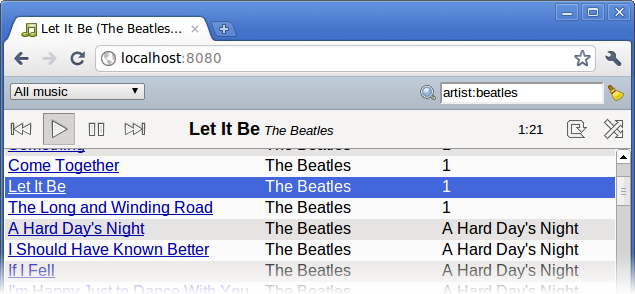
  • Playlist support. The 'rhythmbox' and 'dir' backends detect playlists you've saved (in Rhythmbox or as M3U/PLS files, respectively) and let you choose from among them (using the dropdown in the upper left corner).
  • PLS format playlists are now supported by the 'playlist' backend. The format of the playlist (M3U or PLS) is guessed automatically based on the extension. (Amit Saha)
  • Support for decoding m4a files. (Rainer Hahnekamp)
  • Bind Zeya to a single interface only with the new --bind_address flag. See the cookbook for more info. (Björn Lohrmann)
  • More UI.
  • Bug fixes. Zeya now "just works" under a wider variety of circumstances. (Samson Yeung and others)

Known issues:

  • The 'dir' backend doesn't work with Python 2.5. A fix has been checked in at git HEAD.

See http://web.psung.name/zeya/ for more information about Zeya, installation, getting started, and reporting bugs.