Assorted notes

Many random notes (some for my own reference), each of which is too short to warrant a full blog post:

Emacs

It had always bothered me, just a little, that C-v and M-v, in addition to scrolling, move the cursor to the bottom or top of the screen. This has the odd effect that C-v M-v is not a no-op. Turns out that setting the variable scroll-preserve-screen-position appropriately can fix this. (via emacs-devel)

Chrome

  • Have you ever wondered why running Firefox instances get broken when new versions are installed? On GNU/Linux systems the package manager, which runs as root, pays no mind to what non-root users are doing. Some apps, like Firefox, run into major trouble because they'll load additional files after startup that can't be mixed and matched with the previous versions (this isn't really a problem for programs that are essentially just one binary). Chrome acquires immunity to this with its Zygote mode, which basically means do not load anything from disk after startup. A simple idea, but it takes some work to follow through with it.
  • Among visitors to this blog, Chrome is the second most popular browser, with a 9.5% share! Chrome leads IE (6.6%), Safari (5.9%), and Opera (4.3%), and trails only Firefox (72.6%). You can sort of see what a non-representative sample of web users happens across this blog.

Unix/Ubuntu

  • Soundconverter (aptitude install soundconverter) is a handy GTK/GNOME program for converting (transcoding) audio between formats. It is easy to use, transfers all the music metadata, and seems to take full advantage of multicore processors. (I use it to downsample my music, mostly in FLAC, to Ogg or MP3 for use on portable devices.)

  • When using find with xargs, xargs will get tripped up by filenames with spaces (it will treat each space-delimited component as a different argument). You can get around this by changing the delimiter in both find and xargs to \0 instead of space, as follows:

    find . -iname '*.tmp' -print0 | xargs -0 rm

    You can usually achieve the same effect with find ... -exec but I can never remember how to use it.

HTML, HTML5

Some things I picked up while working on Zeya:

Git for researchers

In my previous job—as a grad student, doing computational/biomedical research—I used Git to manage my projects.

For small projects, people usually treat CVS/SVN as checkpointing tools—tools to get you back to a known good state when you've screwed up. Git, however, provides a whole new vocabulary you can use to talk about creating, altering, composing, combining, splitting, undoing, and otherwise manipulating changes to code (commits). It helps you get stuff done faster every day, not just when you mess up.

Here are a couple of reflections and "lessons learned" on really using VCS to your advantage in a research environment, where some of the rules of thumb are a bit different from those in industry.

(They seem so stunningly obvious now that I've committed them to writing, but they seemed much less so when I first articulated them to myself.)

Retaining history, all of it. I have found git merge -s ours to be very handy. It produces a merge commit and merge topology, tying in the history of the other branch, but without applying any of the changes produced in that branch.

Typically, if a feature doesn't pan out, you delete the corresponding branch and destroy all evidence that you tried. But in exploratory or research contexts, the details of your failed experiments can be quite important. You might need to revisit some past state in order to perform further investigation. Or maybe you want to obtain some numbers for a paper or presentation.

Graphically: imagine you have a "successful" branch feature1 and a "failed" branch feature2 (left). You don't want to git branch -D feature2, since that could cause its history to be lost. If you instead git merge -s ours feature2, you get a topology where the states from both branches appear in your git log (right), but the state at the tip is the same as that at feature1.

* ddddddd (refs/heads/feature1)
* ccccccc
* bbbbbbb
| * 2222222 (refs/heads/feature2)
| * 1111111
|/
* aaaaaaa
* eeeeeee "Merge branch 'feature2'."
|\
* | ddddddd (refs/heads/feature1)
* | ccccccc
* | bbbbbbb
| * 2222222 (refs/heads/feature2)
| * 1111111
|/
* aaaaaaa

This kind of setup makes tracking your progress super easy. My git log basically becomes the scaffolding for my research notebook. I have bare-bones notes like the following:

Commit 2222222: this change did not improve quality at all. Furthermore it runs much slower, probably because blah blah blah blah. See full output in /home/phil/logs/2222222.

The great thing is that now every result (whether a success or a failure) has, attached to it, a commit name: a pointer to the exact code that generated that result. If I hadn't had complete change history so easily available, I would have spent half of my time second-guessing results I'd already obtained.

This application also demonstrates the strengths of DVCS versus CVCS. Research and software development do not happen in a clean linear way. There is lots of backtracking, and sometimes you cannot expect to work effectively with a VCS whose basic model is "one damn commit after another."

Summary: 90% of everything ends in failure. Keeping your failure history (as well as your success history) around is something that is underemphasized.

Long-lived branches vs. refactoring. If you know what you're going to do in advance, then it's not called research. In my work, what I ended up writing on a day-to-day basis depended more on experimentation and testing than on planning and specs. Here's some sample code for illustrative purposes:

# (1)
def my_function(a, b):
   foo = random_sample() # Random heuristic
   something(foo)
   ...

I want to find out how the following code stacks up against (1). Does it perform better? Is it faster?

# (2)
def my_function(a, b):
   foo = shortest_path(a, b) # A better(?) heuristic
   something(foo)
   ...

In reality we might be evaluating alternative heuristics (as here), different numeric parameters, alternative algorithms, or an alternative data source (e.g., training vs. testing data).

Sometimes, when there are a number of alternatives, the right thing to do is to refactor to parameterize the code, for example,

# (3)
def my_function(a, b, heuristic = 'shortest_path'):
   if heuristic == 'random':
       foo = random_sample()
   elif heuristic == 'shortest_path':
       foo = shortest_path(a, b)
   else:
       foo = ... # Additional logic...
   something(foo)
   ...

But every parameterization increases complexity. The new argument is something you have to think about every time you or someone else tries to read your code. Your function is longer, leaks more implementation details, and provides less abstraction. So you don't want to go down this route unless it's necessary. If one choice is a clear winner, and every invocation is going to pass the same argument, then the extra generality you introduced is a liability, not an asset. To do that refactoring can be a lot of work without much reward.

So you want to run and evaluate the alternatives before refactoring. People who find themselves in this situation often write code like this:

# (4)
def my_function(a, b):
   foo = random_sample()
   ## Uncomment the next line if blah blah blah
   # foo = shortest_path(a, b)
   something(foo)
   ...

which is convenient to write, but setting all the switches by hand whenever you want to run it is rather error-prone, especially if the difference is more complicated than one line.

Branching saves the day by letting your tools manage what you were doing by hand in (4). You can compare alternatives like (1) and (2) above against each other if you keep them in parallel branches (granted, you can't select between the alternatives at runtime, but that may be OK). Maintenance is a breeze: with git merge it's easy to maintain multiple parallel source trees, differing by just that one line, for as long as you please. And because you're committing every merge commit, your results are 100% reproducible (if you were messing with your files by hand, in order to reproduce a code state you would have to not only specify a commit name, but also what lines you had commented and uncommented).

After branching, you can mull it over and obtain data on all the alternatives. When you've made your decision, you either drop one implementation and end up with (1) or (2), or, if you need the generality, then you refactor so you can choose between them at runtime (3).

Summary: lightweight branches allow you to defer the work of refactoring rather than having to pay for it up front. They greatly improve the hackability of code, by letting you try out many different alternatives reliably and without much hassle.

Zeya 0.3

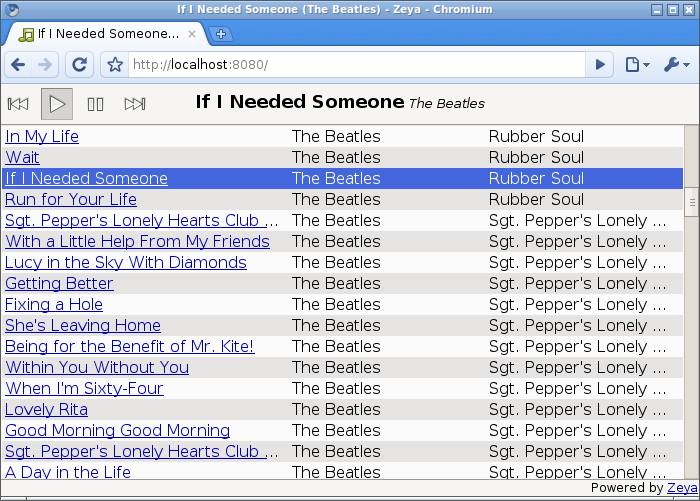
I'm pleased to announce the 0.3 release of Zeya. Zeya is a music player that runs in your (HTML5 draft standard-compliant) web browser, giving you streaming access to your music collection from pretty much anywhere.

Romain Francoise has generously packaged Zeya for Debian. Debian "testing" (squeeze) users can now install Zeya as follows:

# apt-get install zeya

(Zeya 0.2 is in Debian "testing" at present; Zeya 0.3 will be in "unstable" shortly and in "testing" after the requisite testing period.)

Many significant changes have been made since Zeya 0.2:

  • You can filter your music collection by title, artist, or album with Zeya's new search functionality. (Thanks to Romain Francoise)
  • Zeya implements traffic shaping for Firefox clients, to keep from hosing low-bandwidth network links.
  • Zeya supports password protecting your music collection with Basic HTTP authentication, configurable with --basic_auth_file. (Thanks to Samson Yeung)
  • The default backend is now dir (read all music within a directory) instead of rhythmbox.
  • Initial load time is significantly improved, as Zeya now compresses output data when appropriate. This yields a 3-7x decrease in transfer size. (Romain Francoise)
  • The target output bitrate can be set with --bitrate. (Romain Francoise)
  • Zeya does a better job of guessing reasonable metadata when the ID3 tags are missing. (Samson Yeung)
  • Zeya listens on IPv6 interfaces by default. (Romain Francoise)
  • Zeya is multithreaded for improved parallelism.
  • zeyaclient.py supports skipping to the next song (with C-c) and jumping back to the query prompt (with C-c C-c).
  • Zeya decodes MP3s using mpg123 instead of mpg321, for some performance improvements.
  • An online guide to the keyboard shortcuts has been added (click "Help" at the bottom or press ?).

Many bug fixes and UI improvements have also been made.

Known issues:

  • zeyaclient has not yet been updated to support basic HTTP authentication.

You can obtain Zeya via git:

git clone http://web.psung.name/git/zeya.git

As I mentioned above, Zeya is also packaged for Debian.

See http://web.psung.name/zeya/ for more information, including a quick start guide. We'd appreciate hearing any problem reports on our new bug tracker or via Debian's bug tracker.

Zeya 0.2

Zeya is a music server that streams your music collection to any computer, phone, television, picture frame, or refrigerator that has a current-generation web browser. The client part uses the <audio> tag in the HTML5 draft spec, so it runs right in the browser— without Flash or Silverlight and without the need to install any extra software at the client.

I'm pleased to announce the 0.2 release of Zeya.

New since Zeya 0.1:

  • Support for Internet Explorer (via Google's Chrome Frame plugin). IE joins Firefox and Chrome in the list of supported browsers.
  • A new console frontend (more below)
  • Numerous UI improvements, both substantive and cosmetic
  • A unit test suite

There are many bug fixes, the most notable being:

  • Filenames with non-ASCII characters can be read and served correctly.
  • Files that are not in a decodable format are hidden entirely from the user.
  • Zeya should actually work in Python 2.5 as advertised.

Known issues:

  • 64-bit GNU/Linux builds of the Google Chrome dev channel are undergoing some codec turbulence. Use either the 64-bit Chromium builds or 32-bit builds of Chrome or Chromium instead.

The new console frontend, zeyaclient.py, is a simple (read: primitive) app that connects to a Zeya server and prompts for songs to play. This is handy if you are using a computer that doesn't have a supported web browser (but on which you can run Python scripts). The Sugar OS on the XO-1 is one such setup, so I'm now using my XO, which is connected to a hi-fi set, as a jukebox for my living room.

I've also been using Zeya more frequently to listen to music (from my home computer) at work. It's much more satisfying than internet radio.

Visit http://web.psung.name/zeya/ for more information, or read previous blog posts on Zeya.

It's time for web developers to break out the champagne

It is somewhat amusing to realize that Google is not playing the same game as the other browser vendors. Its incentives are very different, and that makes all the difference. Google is not directly interested in increasing adoption of Chrome; it actually benefits from increased use of the web on any browser. Sundar Pichai, the Google VP in charge of Chrome, has said as much:

"We were all very clear that if the outcome was that somehow Mozilla [Firefox] lost share to Google [Chrome], and everything else remained the same, internally, we would have been seen as having failed," Mr. Pichai says.

So, journalists who are fixated on market share, like JR Raphael of PC World (not to pick on him), are missing the point:

Can Chrome Shake Up the Browser Market? ... As it stands now, Chrome holds about 3 percent of the global browsing market ... Google's hope ... is to double that share by next September—then triple it by 2011.

Chrome has already shaken up the browser market. In the year that Chrome has been out, speed has become one of the primary selling points for every major browser. The performance of every browser (and hence, every web app) has improved dramatically, and more improvements are in the pipeline. That fact—not Chrome's who-even-cares percentage market share—is the story of this year.

And the folks at Google are probably pretty happy with that. If people use a fast browser and load more web pages and use more Google products and see more advertisements, who cares if it says "Firefox" or "Chrome" in the title bar? Google doesn't.

Hell, who cares if it says "Internet Explorer"? Google doesn't. Which brings me to Chrome Frame, a plugin that runs a Chrome renderer in IE:

I wept tears of joy when I first saw this. For comparison, see IE8's native rendering of Acid3.

The Chrome renderer is activated on an opt-in basis from web developers, using a special META tag.

It remains to be seen how all this will pan out, but this is a very clever move on Google's part. It changes the economics both for IT departments and for developers:

  • Many if not most IE users are unwilling or unable to change their browser for legacy/lockdown reasons; I suspect that is the most important reason why Firefox, after all these years, is only at around 23% market share. It's not that IT departments are inherently against installing new software. They'd love to be able to deploy spiffy HTML5 apps too. But their hands are tied because they must make sure existing apps keep working. Now that they can use HTML5 apps without breaking any legacy apps, they may be a lot more open to deploying Chrome Frame than to changing browsers entirely.
  • Installing a plugin is a lot easier for end users than installing a new browser. In fact, it's a routine enough operation that I suspect many web developers will soon choose to take the Chrome Frame route rather than continue to expend time, money, blood, sweat, and tears working on hacks for native IE support. When users are presented with a dialog saying "In order to use This App You Really Want you must install the mumble mumble plugin," most of them will do it. (Flash has upwards of 90% market penetration!)

Because it was willing to sneak in the side door, ship as a plugin, and strip the chrome from Chrome, Google may be the first to have a real shot at bringing fast and standards-compliant browsing to a majority of web users.

New external Thinkpad keyboard

I ordered one of the new external Thinkpad keyboards and have been using it for a few days now.

Specs in brief: USB, no touchpad, no numpad, feels exactly like a Thinkpad T400s keyboard, and the price is right ($60).

For my own purposes, the design decisions that Lenovo made here are pretty much spot-on. This thing is fantastic; in particular:

  • TrackPoint scrolling on my desktop machine! No exaggeration, this alone is worth the price. Scrolling any other way is just… uncivilized. I look forward to using the mouse a lot less.
  • I was at first skeptical of Lenovo's decision to make a small keyboard, but I think it really turned out well:
    1. It significantly reduces the distance I have to reach to press keys like PgUp, PgDn, and the arrow keys. Alas, there are still a bunch of apps that have the poor sense to bind commonly used commands to keys like Ctrl+PgDn. I'm looking at you, web browsers. (If you wish, read more ranting about poorly chosen keyboard shortcuts.)
    2. I don't use the numpad often enough to justify having one.
    3. I like having the free desk space. And not having to reach as far for the mouse when I want to use it.
  • I like how thin the keyboard is (it's sort of wedge-shaped, and only about half an inch thick at the home row). At first I didn't think this would matter, but I definitely end up contorting my wrists much less than with my old keyboard.

And, to boot, it looks very classy— the picture above doesn't really do it justice.

Thinkpad keyboards do have some quirks (e.g. Fn key placement). I don't mind these anymore, but I know some people do. So perhaps the most useful thing that I can say in this review is that there are no surprises, as far as I can tell. If you've used a Thinkpad, you probably already know whether you want one of these Thinkpad keyboards.

The only reservation I have is that the keys seem to be spaced a little further apart than I'm used to (having become acclimated to the X series keyboards). I'm presuming that this is something I'll get used to over time, so I'm not worrying yet.

Kudos to David Hill and his team for a job well done.

ThinkPad Keyboard at the Lenovo Store

Additional notes on GNU/Linux support:

  • All the special keys (that I tried, anyway— volume, mute, and media player control) work out of the box on Ubuntu GNU/Linux 9.04.
  • TrackPoint scrolling works, too. Follow the instructions here, except in mouse-wheel.fdi, use "Lite-On Technology Corp. ThinkPad USB Keyboard with TrackPoint" instead of "TPPS/2 IBM TrackPoint". (In general, it looks like you can figure out the right info.product string to use by running xinput list and finding the right device from the list.)

Getting more "flow" from your window manager

Working on a Thinkpad keyboard is pure bliss. The Trackpoint lets me point (and scroll!) without moving my wrists; within Emacs/screen, even it is superfluous. Being able to immediately act on one's intentions is an important factor in attaining a state of flow, and there is a huge psychological difference between being able to do something "now" and "wait, hang on for 500ms so I can reach the touchpad." When I'm really in the zone, I can actually notice my concentration dissipating if I need to reach for the arrow keys, or worse, the mouse or touchpad (this is hard to explain to people who don't use Emacs or Vim!).

But window managers are still awful

Yet, even if I'm using Emacs and/or a web browser 90% of the time, and even supposing they left nothing to be desired, there's another program I have to interact with near 100% of the time: the window manager.

It's a shame, but few of the usability lessons we learned over the years made it to any of the common window managers— Windows, Mac, or Metacity. The window manager acts an intermediary sitting between the user and every single app, but WM functions are often marginalized and too hard to activate. This is especially unfortunate, because now that huge monitors are commonplace, we actually need better WMs to help us effectively use that screen space— maximize and minimize alone don't cut it anymore! (Jeff Atwood pointed this out all the way back in 2007.)

How can we do better? Well, what does "better" even mean? Here are the assumptions I'm operating under, about what kinds of operations are easy or hard to perform:

  • "Reaching is hard": reaching touch-typeable keys is easier than reaching the function keys (F1 … F12), the arrow keys, or the numpad.
  • "Pointing is hard": typing a small number of keystrokes is easier than using the mouse (or any other pointing device).
  • "Fitts's law": pointing at a large target with the mouse (e.g. a window) is easier than pointing at a small target (e.g. an icon, menu, button, border, or title bar).

You may be able to see where the problems are. Windows and Metacity map a bunch of window management functions to far-away placed keys like Alt+F4 and Alt+F10. Mac OS has better bindings for some functions, but doesn't map Maximize at all by default, instead providing access via itty-bitty buttons on each window. On both Windows and Mac OS, the fastest way to move (or resize) a window is by dragging it by its title bar (or resize handle). It doesn't get any worse than that.

Dragging resize handles… seriously? Fitts's law, anyone? This is nonsense.

This is the main reason that I can only use Windows or Mac OS for about 30 seconds before my blood pressure starts to go up. They are not usable. Having to fish around with the pointer every time you want to do something is also a great way to develop RSI.

Building a better WM

I've played around with a few scattered ideas with the goal of making a better WM for myself. I've implemented these in my Openbox config, although any reasonably configurable WM will do.

But, I would like to stress here, the details are unimportant. If you can find the parts of your workflow that are unnecessarily slow, and eliminate them, more power to you.

1. Manage windows and workspaces with shortcuts that don't require function keys or arrow keys. For example, Alt+F10 (maximize a window) and Ctrl+Alt+LeftArrow (switch workspaces) are out. In my setup they are replaced by Win+1 and Win+j, respectively.

2. Move and resize windows with alt-dragging (actually, Win-key dragging). When you want to move or resize the window, the entire window is your drag target. No need to aim for the title bar, or the resize handle, or the window border. Fitts's law, suckers.

To move windows: point at the window, hold down Win, and drag with the left mouse button. To resize windows: point at the window anywhere near the corner you want to move, hold down Win, and drag with the right mouse button.

Kudos to Metacity (and most other X WMs) for shipping with something similar by default.

3. Arrange windows using the keyboard.

It took me the longest time to realize that this was something that would actually be useful.

Most people only have a couple of common ways they like to arrange windows on the screen— for example, one window filling the entire screen, or two half-width windows side by side. What this means is that in the common case, you are really not asking for windows to be placed at specific pixel positions on your screen. Hence, the mouse isn't actually needed.

I use a couple of different window management "idioms," which are probably best illustrated by example:

  • Win+s i j k RET, for example expands the current window until it meets the nearest edge to the north, west, and south. Before and after:

    Win+s activates window-expanding and i, j, k, and l indicate north, west, south, and east, respectively.

  • Win+s Win+s means "expand the current window as much as possible without covering anything else," which seems like a common thing to want. Before and after:

    Openbox's smart window placement policy attempts to place a second window within the space left by the first one. So a quick Win+s Win+s makes a second window neatly fill up all the space left unused by the first one!

    For more complex arrangements, it's very fast to drag a window to an approximate location (see alt-dragging, above), then use Win+s Win+s to make it neatly fill the available space.

  • Win+w is analagous to Win+s except that it moves a window to the nearest edge to the north/west/south/east instead of resizing it.

An alternative strategy is to bind keys to move windows to a small number of fixed "slots," such as the two halves of a screen. Jeff Atwood mentions this strategy and its implementation in WinSplit Revolution.

4. Configure single-key shortcuts for launching common apps. For example, Win+b for a web browser. Not always a window-manager responsibility, but it can really streamline one's work.

Conclusion

Although I am still experimenting with some aspects of this setup, I am fairly happy with it. For better or for worse it does feel a lot like a "normal" window manager, just one that is highly streamlined (and doesn't give me hypertension). I'd be curious to see what additional improvements can be gained by giving up some of the associated flexibility and moving to a more restrictive model (e.g. something like a tiling WM).

For the curious, I've posted Openbox configuration recipes for tips 2 and 3 here.